What you will do
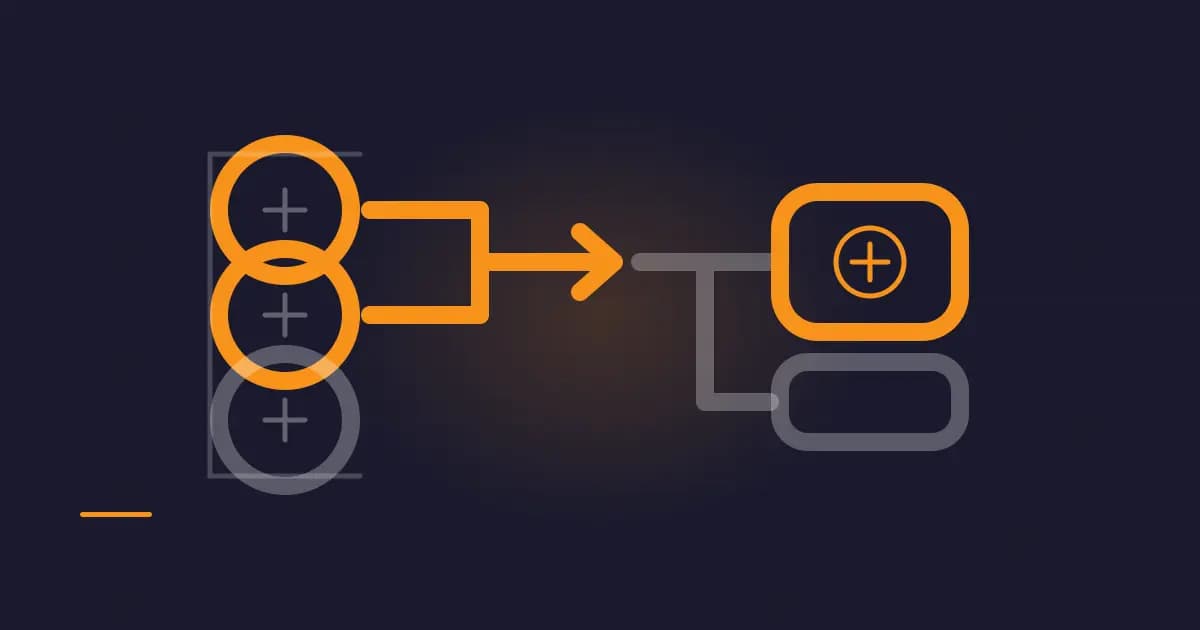
Coin control lets you choose which pieces of bitcoin fund a payment. A normal wallet hides this choice behind one balance. That is convenient, but it can join parts of your history that you meant to keep separate.
This guide uses Sparrow Wallet 2.5.5, the latest published release when checked on 7 October 2026. The official release record dates it to 17 September 2026. Sparrow's coin-control instructions use the UTXOs screen, multi-selection and Send Selected. A UTXO is an unspent transaction output: one discrete amount your wallet can spend.
You will learn how to label those outputs, select only the ones you intend to spend, inspect the payment and change, and stop before signing if the transaction joins unrelated history. This is a review process, not a promise of anonymity. No real wallet, keys or funds were used for the verification fixture in this guide.
Before you start
You need:
- Sparrow Wallet 2.5.5 installed from the official project
- an existing wallet that has finished loading its transaction history
- clear labels for at least the outputs you may spend
- the recipient's fresh address and the amount you intend to pay
- a signing device if the wallet normally requires one
Do not enter a seed phrase or private key for coin control. Sparrow can show and select outputs in a watch-only wallet, but that wallet cannot sign by itself. Keep the signing flow you already use.
Practice first with an empty test wallet or stop at the unsigned transaction preview. Do not create a real payment merely to learn the buttons.
1. Read the balance as separate outputs
Bitcoin does not store one editable balance beside your name. Your wallet finds separate outputs it can spend and adds them together. The Bitcoin transaction guide describes each output as an amount plus the condition that must be met to spend it.
When a transaction uses an output, it consumes that output completely. If the selected inputs exceed the payment and fee, the wallet usually creates a change output back to the wallet. The old output does not shrink in place.
Imagine a wallet showing these synthetic entries:
| Label | Amount | What the label tells you |
|---|---|---|
| Exchange withdrawal | 120,000 sats | A service already knows this belongs to you |
| Reimbursement | 80,000 sats | A known person sent it |
| Test receipt | 60,000 sats | A separate test context |
The wallet total is 260,000 sats, but those entries do not have the same history. Spending all three as inputs in one transaction makes a public link between them. Sparrow's privacy guide explains the common-input heuristic: observers often assume inputs used together have one owner. It is a useful guess, not mathematical proof.
2. Label before selecting
Open the wallet and review the Transactions, Addresses and UTXOs screens. Add a label that will still make sense months later. Good labels describe the source or purpose without copying private data into the wallet file.
Examples include salary September, exchange withdrawal 4 or conference reimbursement. Avoid a person's full home address, account password, recovery words or anything else you would not want in a computer backup.
Labels are local wallet metadata. They are not written into the Bitcoin transaction. They help you make a decision before the public transaction is created.
If you cannot explain where an output came from, do not guess. Mark it source unknown and investigate your own transaction history. A wrong label can be worse than an honest unknown because it gives false confidence during selection.
3. Select the outputs you mean to spend
Open UTXOs, just above Settings in Sparrow 2.5.5. Select one output. To select several, hold Ctrl on Windows or Linux, or Cmd on macOS, while clicking each row. Then choose Send Selected.
The Send screen should open with only those outputs available as inputs. Enter the recipient address and a clear label, then enter the amount.
Choose based on the payment's context, not only the closest amount. If an output is already linked to the recipient or to the same public identity, using it may reveal less new information than mixing in an unrelated output. That is not a universal rule. Your threat model, future plans and wallet history matter.
Selecting more outputs can also make the transaction larger. Fees pay for transaction data, so extra inputs can raise the total fee even when the fee rate stays the same. Review both the selected inputs and the final fee before continuing.
4. Check whether the selection is sufficient
The selected value must cover the payment and the mining fee. In the synthetic fixture above, a 100,000-sat payment plus a 1,000-sat fee needs 101,000 sats.
Selecting only the 120,000-sat output covers it and leaves 19,000 sats for change. Selecting only the 80,000-sat output cannot cover it. Selecting all three covers it, but also links three histories and creates much more change.
These figures are an arithmetic example, not a recommended fee or payment. A real wallet calculates transaction size and obtains a current fee estimate. Fees change, and the final fee depends on the actual inputs, outputs and script types.
If Sparrow says the selected value is insufficient, return to UTXOs and add another suitable output. Do not lower the recipient amount unless that is what you and the recipient agreed. Do not add every output automatically just to clear the warning.
5. Inspect payment, fee and change
Before signing, review the transaction diagram and output list. You should be able to identify:
- every input you selected
- the recipient address and exact amount
- the mining fee and fee rate
- any change output returning to your wallet
Check the recipient address again using the method appropriate to your setup. If a hardware signing device displays the address and amount, compare them on that device. A computer can prepare a different transaction from the one you intended, so the signing screen is part of the check.
Do not send change to an old external address merely because you recognise it. Let the wallet derive its normal internal change address. Address reuse makes separate payments easier to connect.
A very small change output may be uneconomical to spend later. Read our Bitcoin dust output explainer for that boundary. Do not solve it by silently adding the small remainder to the recipient. Return to the selection and amount, then review the new transaction from the beginning.
6. Sign only the transaction you reviewed
If the input set, payment, fee and change are correct, continue through your normal signing process. A watch-only wallet will export or pass a PSBT to the signing device. A software wallet may sign locally. Coin control does not change who holds the keys.
After signing, compare the final transaction details once more before broadcast. Broadcasting makes the transaction public and asks the network to relay it. Coin control cannot pull it back later.
After broadcast, the selected inputs should appear spent or pending in Sparrow. The recipient output and change output should match the preview. Wait for confirmation according to the payment's context. An unconfirmed transaction can still be replaced or disappear from some mempools.
When coin control helps
Coin control is useful when one wallet contains outputs with clearly different histories. It can help you avoid joining an exchange-linked withdrawal with a private payment, keep accounting categories separate, or choose an output large enough to avoid unnecessary inputs.
It does not erase earlier links. If two outputs were already used together, selecting them separately later does not undo that transaction. It also does not hide the amount, recipient or transaction graph.
The Bitcoin Design transaction guide treats inputs, outputs, fees and change as parts of one review flow. Coin control improves that review by making the input choice visible. It does not turn a public ledger into a private one.
If something goes wrong
Send Selected is unavailable: make sure you selected at least one spendable row on the UTXOs screen. A frozen, immature or watch-only output may need a different action or signing flow.
The selected amount is too small: add another output whose history you are willing to link, or agree on a different payment. Do not edit the recipient amount without agreement.
The fee looks unexpectedly high: count the inputs and outputs. More inputs usually mean more transaction data. Return to the UTXO list and compare another valid selection.
The change is unexpectedly small: verify the amount unit and fee rate. Make sure sats were not entered as BTC. Stop if the preview does not match your calculation.
You selected the wrong output: go back before signing and rebuild the transaction. Do not rely on memory after changing the input set. Review every output again.
The signing device shows different details: reject the signature. Reconnect the device, reopen the intended wallet and prepare a fresh transaction. Never approve a mismatch to see whether it works.
The wallet is missing an output: confirm the wallet is connected and fully loaded. Check whether the output belongs to another account, script type or passphrase-derived wallet.
What was and was not verified
The Sparrow 2.5.5 release, current FAQ steps and privacy documentation were checked on 7 October 2026. A disposable Node.js fixture checked the selection arithmetic: one synthetic 120,000-sat output covered a 100,000-sat payment plus a 1,000-sat fee and produced 19,000 sats of change; an 80,000-sat selection failed; selecting all three synthetic outputs exposed three distinct labels to the same transaction plan.
No Sparrow interface, wallet file, signing device, server connection, PSBT or broadcast was exercised. No address, private key, recovery phrase or real funds were used. Button placement can change in a later Sparrow release, so use the official FAQ if the interface differs.
The practical boundary is simple: labels preserve context before spending, coin control makes the input choice explicit, and the final preview shows the public link you are about to create. If you cannot explain every input and output, stop before signing.